How to Manage Campaign Links in Google Sheets (Bulk Short Links + Click Analytics)

Marketing campaigns tend to break down in the same place: links.
Campaign URLs live in one tool, shortened links in another, analytics in a third, and the actual campaign planning happens somewhere else — usually Google Sheets. As soon as you run more than a handful of campaigns, things become messy: links get duplicated, tracking breaks, and reporting turns into manual work.
The good news is that Google Sheets is already the perfect place to manage campaign links — if you structure it correctly and automate the right parts.
In this guide, we’ll walk through a simple, scalable way to manage campaign links in Google Sheets, including bulk short links and click analytics, all in one workflow.
Why Google Sheets Is the Best Place to Manage Campaign Links
Google Sheets is already the default planning tool for many teams:
- Marketing calendars live there
- Campaign plans live there
- Influencer lists live there
- Client reports live there
Trying to manage campaign links outside of Sheets usually creates friction:
- Links are created in one tool
- Copied into Sheets manually
- Analytics live elsewhere
- Reporting becomes slow and error-prone
Sheets already gives you what you need:
- Collaboration
- Filters and pivots
- Version history
- Easy sharing with teammates and clients
The missing piece isn’t planning — it’s link creation and tracking that fits naturally into a spreadsheet workflow.
A Simple Campaign Link Workflow in Google Sheets
Before talking about tools, let’s define a clean workflow.
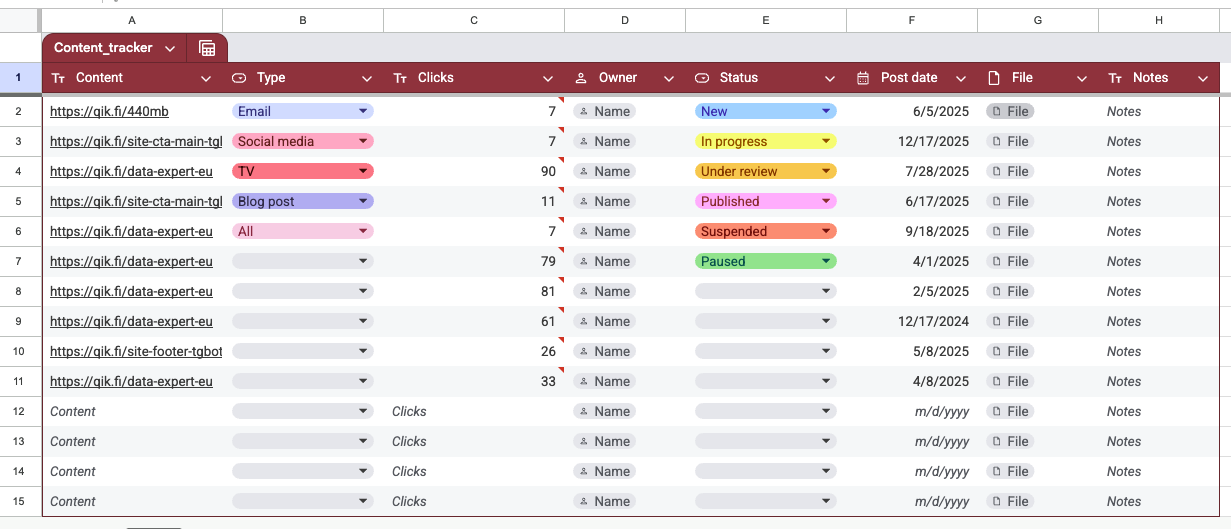
A scalable campaign link setup in Google Sheets usually follows this structure:
- One row = one campaign link
- Columns for:
- Destination URL
- Campaign name
- Channel (email, ads, social, influencer, etc.)
- Optional UTM parameters
- Bulk generation of short links
- Automatic click tracking
- Reporting directly in the same sheet
This approach keeps everything transparent and auditable — no hidden dashboards, no manual syncing.
Why Bulk Short Links Matter for Campaigns
Most URL shorteners are designed for one link at a time. That works — until you run real campaigns.
In practice, campaigns often require:
- Multiple platforms
- Country variations
- A/B test variants
- Different partners or influencers
Creating these links manually is slow and error-prone. It also discourages experimentation — teams avoid variants simply because managing links is annoying.
Bulk short link creation solves this:
- Create dozens (or hundreds) of links at once
- Keep naming consistent
- Reduce mistakes
- Scale campaigns without friction
For teams running campaigns regularly, bulk link creation is not a nice-to-have — it’s essential.
Track Campaign Clicks Without Leaving Google Sheets
Campaign analytics doesn’t always need a full web analytics setup.
Often, teams just want to know:
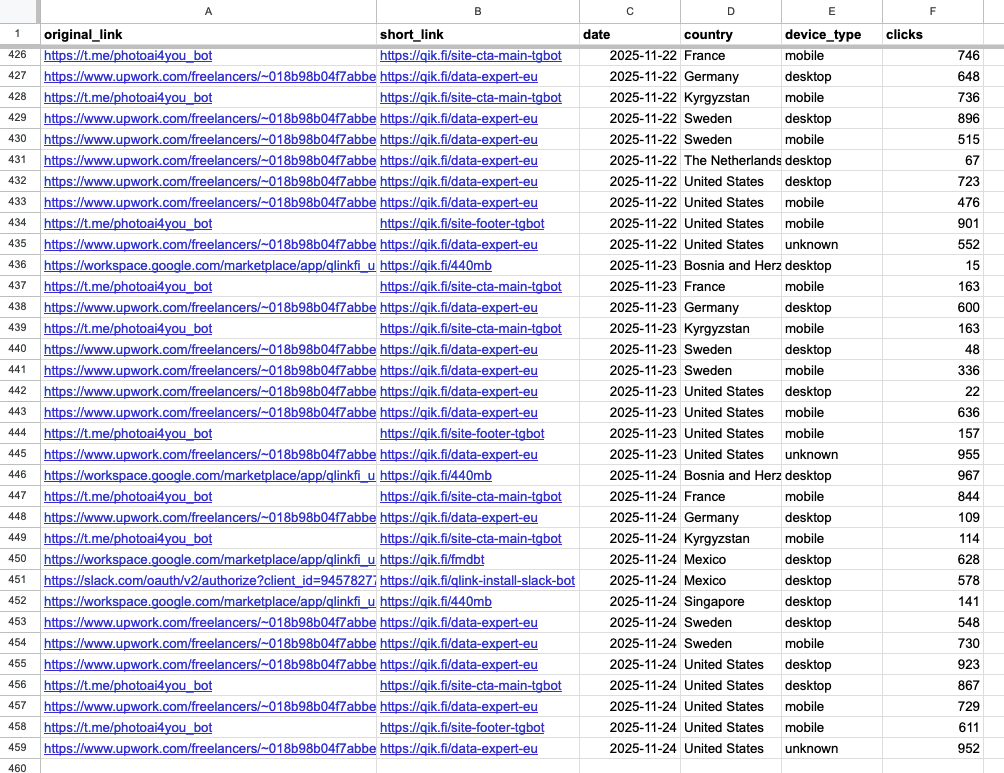
- How many clicks did each link get?
- Which countries clicked?
- Which device types performed better?
- How performance changed over time
When this data lives directly in Google Sheets, reporting becomes simple:
- Filter by date
- Compare campaigns side-by-side
- Create quick pivot tables
- Share reports without exporting data
This kind of link-level analytics is especially useful for:
- Paid campaigns
- Influencer tracking
- Launch announcements
- Partner links
It’s not a replacement for Google Analytics — it’s a lightweight, focused layer for campaign performance.
Example: A Campaign Tracking Spreadsheet
A practical campaign tracking spreadsheet usually includes columns like:
- Original URL
- Campaign name
- Channel
- Short link
- Total clicks
- Clicks by country
- Clicks by device
- Notes or status
Because everything lives in one place, teams can:
- Audit campaigns quickly
- Spot underperforming links
- Share results with clients or stakeholders
- Reuse the same structure for future campaigns
This kind of spreadsheet becomes a living campaign log, not just a one-off report.
Automating This Workflow with QLink
This is where automation removes friction.
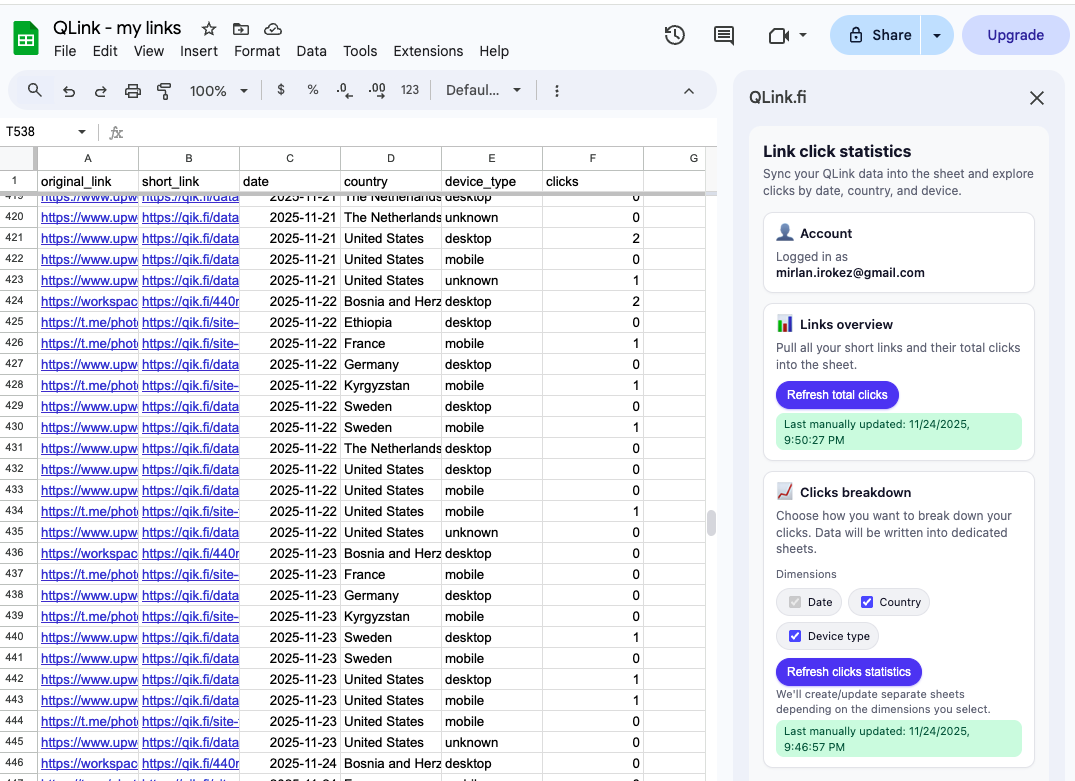
QLink is a Google Sheets add-on designed specifically for this workflow:
- Create short links in bulk directly from your sheet
- Use custom back-halves for readable, campaign-friendly URLs
- Automatically write click stats back into the spreadsheet
- Keep everything privacy-first and EU-hosted
Instead of managing links in a separate dashboard, QLink fits into the tool teams already use daily — Google Sheets.
No extra exports.
No manual syncing.
No ad-tech tracking.
Try This Workflow Yourself
If this approach makes sense for how you run campaigns, you can try it immediately.
👉 Install QLink for Google Sheets (Free) Create bulk short links and track campaign clicks directly in your spreadsheet.
👉 Use the Free Campaign Link Template
Make a copy of our Google Sheets template and connect it to QLink in minutes.
Free plan available • No ads • EU-hosted • Cancel anytime