Bitly Bulk Links Alternative for Google Sheets (Create & Track in One Sheet)

If you’re searching for a Bitly bulk links alternative, you’ve probably hit the same wall many teams hit:
Bitly works fine for a few links… until you need to manage dozens (or hundreds) of campaign links, keep everything organized in Google Sheets, and produce reports without jumping between tools.
Most marketing teams already plan campaigns in spreadsheets. The friction starts when link creation and click data live somewhere else. That’s when “simple link shortening” turns into:
- Copy–pasting links into Sheets
- Messy naming conventions
- Duplicate links
- Confusing reporting
- Unclear which link belongs to which campaign or channel
This article shows a better approach: a Google Sheets-first workflow for bulk short links and campaign click tracking — and what to look for if Bitly isn’t fitting your use case.
If you haven’t set up a clean campaign spreadsheet workflow yet, read this first:
How to Manage Campaign Links in Google Sheets (Bulk Short Links + Click Analytics)
Why Bitly Often Breaks Down for Bulk Campaign Work
Bitly is popular for a reason — it’s widely known, easy to start, and reliable. But bulk campaign workflows tend to expose a few practical pain points.
1) Your “source of truth” is still Google Sheets
Most teams plan campaigns, partners, and creative variations in Sheets. If you create short links outside the spreadsheet, you typically end up with:
- a link shortener dashboard for link creation
- a spreadsheet for planning
- another system for analytics or reporting
That split creates constant overhead — and it’s easy for links to drift out of sync.
2) Bulk workflows tend to become import/export work
Even when bulk features exist, they often feel like an add-on to a dashboard product rather than a spreadsheet-native workflow. In practice, teams still end up doing manual steps like:
- exporting/importing CSVs
- cleaning columns
- matching rows
- fixing broken mappings after edits
3) Reporting and collaboration becomes harder than it should be
If your team (or clients) already work in Sheets, a separate analytics dashboard often becomes a bottleneck:
- stakeholders don’t log in
- reporting is slower than expected
- data gets copied into slides manually
- campaign summaries become inconsistent
The issue isn’t “Bitly is bad.” The issue is that many teams want a workflow that lives where their campaigns already live.
What “Bulk Links” Actually Means in Real Campaigns
When people say “bulk links,” they usually mean more than “create 50 short links quickly.”
In real marketing ops, bulk means:
- generating short links for multiple channels (email, ads, social, influencer, etc.)
- creating variants for A/B testing
- managing country or language versions
- tracking partner/influencer links
- keeping naming consistent across every row
If you’re doing any of that in Sheets, the ideal flow is simple:
One row = one campaign link
Links + UTMs + results live together.
That’s where spreadsheet-native workflows win.
A Google Sheets-First Alternative: Keep Links + UTMs + Analytics in One Place
Here’s the workflow that tends to work best for small teams, agencies, and founders:
- You manage campaigns inside Google Sheets
- You generate short links in bulk from the same sheet
- You pull click analytics back into the sheet for reporting
- You create pivots/charts and share results without exports
This turns Sheets into a campaign link system instead of a messy planning doc.
What this looks like in practice
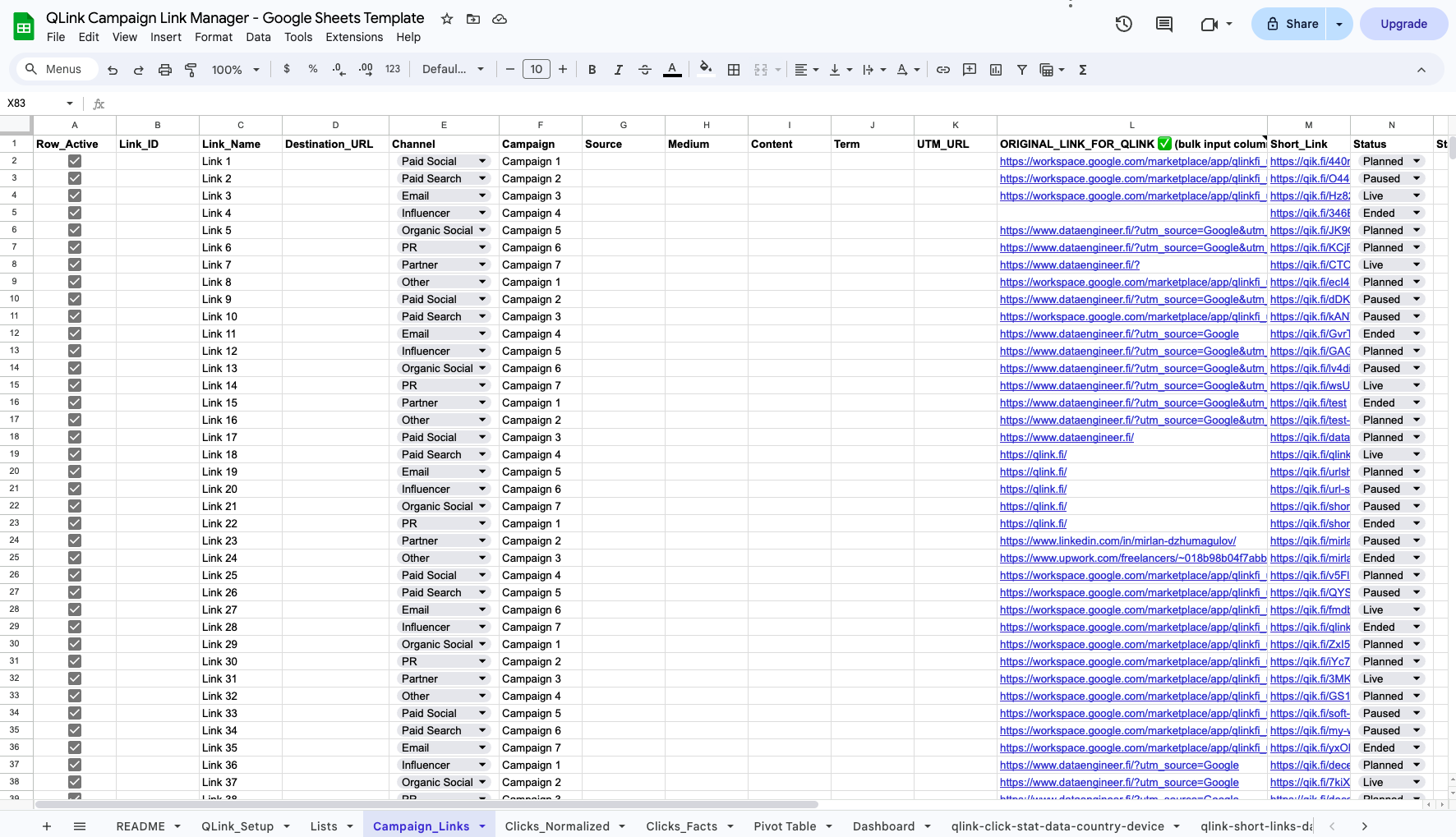
Your sheet might include columns like:
- Original URL
- Campaign name
- Channel
- UTM Source / Medium / Campaign (optional)
- Short link
- Clicks
- Country breakdown
- Device breakdown
- Notes / status
What to Look for in a Bitly Bulk Links Alternative
If you’re evaluating alternatives, optimize for workflow, not “number of features.”
Here are the must-haves if you work in Google Sheets:
✅ Bulk creation inside the spreadsheet
Not CSV juggling. Not exporting. Just “select rows → generate short links.”
✅ Customizable short links (back-halves)
Readable URLs matter for campaigns and client trust.
✅ Click analytics you can actually use
At minimum:
- Clicks over time (by date)
- Country
- Device type
✅ Easy reporting & sharing
If your reporting already happens in Sheets, analytics should land there too.
✅ Privacy stance you can explain to clients
Teams increasingly care about ad-tech tracking, compliance, and where data is hosted.
How QLink Fits This Use Case (Google Sheets-First)
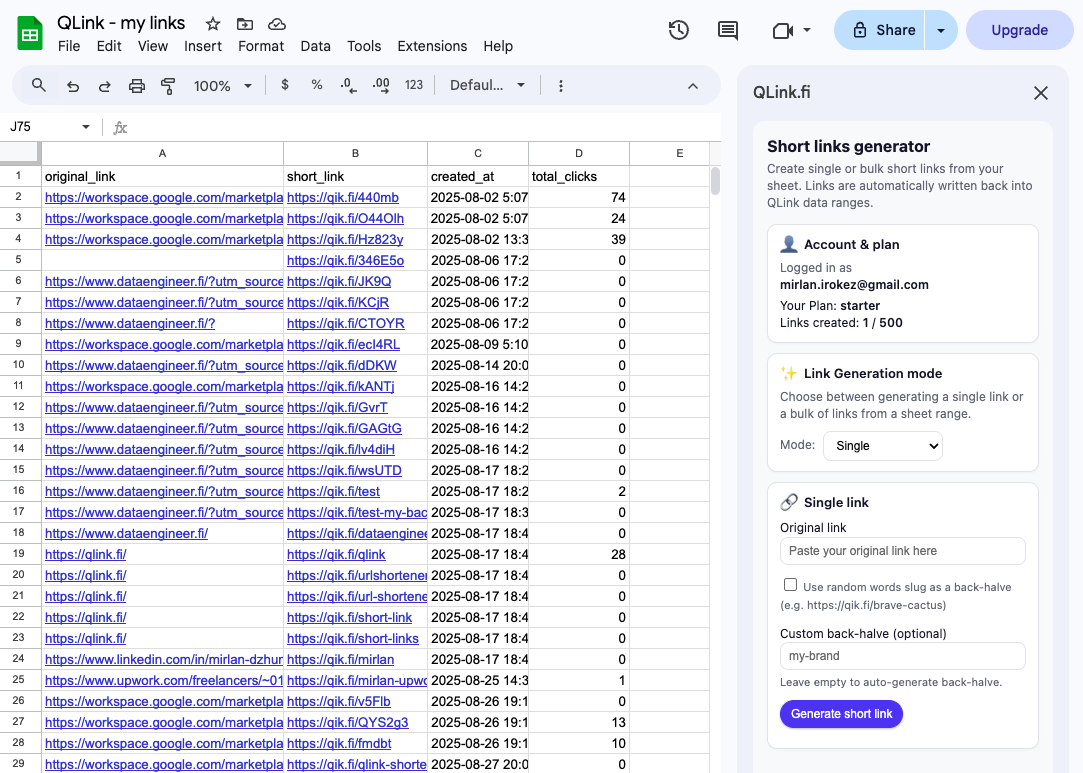
QLink is built specifically for teams who manage campaign links in Google Sheets:
- Create short links one-by-one or in bulk inside Sheets
- Use custom back-halves for clean, campaign-friendly URLs
- Export click analytics into Sheets, aggregated by:
- date
- country
- device type
- Privacy-first, ad-free, EU-hosted infrastructure
Instead of making Sheets “sync” with a link shortener dashboard, QLink treats Sheets as the primary interface.
Dashboard Shortener vs Sheets-Native Workflow (Quick Comparison)
This is the difference in how teams actually work, not a “feature checklist”:
| Workflow step | Typical dashboard shortener | Sheets-native workflow (QLink-style) |
|---|---|---|
| Campaign planning | Often Google Sheets | Google Sheets |
| Bulk link creation | External dashboard / import-export | Directly inside the sheet |
| Naming conventions | Often manual | Controlled via columns/back-halves |
| Analytics | External dashboard | Written back to the same spreadsheet |
| Reporting | Export, copy into slides | Pivot tables + charts in Sheets |
| Sharing with clients | “Log into dashboard” | Share the spreadsheet |
If your workflow already lives in spreadsheets, the Sheets-native approach removes a lot of friction.
Migrating from Bitly to a Sheets-First Setup (Simple Path)
If you already have a spreadsheet with campaign links, migration is usually straightforward:
- Keep your existing columns (campaign, channel, UTMs)
- Add a column for “Short link”
- Generate short links in bulk for new campaigns first
- Slowly move older campaigns only if needed
- Start reporting inside Sheets immediately (click stats + pivots)
Don’t try to “perfectly migrate everything” on day one. Start with the next campaign and let the workflow prove itself.
Try the Google Sheets Bulk Links Workflow
If you’re running campaigns in Sheets and want a simpler bulk workflow, here are two ways to start.
Option A — Install QLink for Google Sheets (Free)
Create bulk short links and track click analytics directly in your spreadsheet.
Install link: https://qik.fi/blog-post-2-to-install-addon
Option B — Use the Campaign Link Manager Template
Make a copy of a ready-to-use campaign tracking sheet and connect QLink in minutes.
Template link: https://qlink.fi/templates
Free plan available • No ads • EU-hosted • Cancel anytime
FAQ
Is QLink a replacement for Google Analytics?
No. QLink is link-level campaign tracking. It helps you measure performance of your campaign links (clicks by date, country, device) and report quickly inside Sheets. For website/product analytics, GA (or another analytics tool) still makes sense.
Do I need a website to use QLink?
No. QLink works for any URLs (landing pages, app store links, documents, social links, partner links, etc.).
Who is this best for?
QLink is ideal for marketers and agencies, but also useful for founders and teams who manage lots of links and want clean reporting without building an analytics stack.
Next: Build Your Campaign Link System in Sheets
If you want the full end-to-end workflow, read the step-by-step guide here:
How to Manage Campaign Links in Google Sheets (Bulk Short Links + Click Analytics)